Problem set 1
Introduction to R and the tidyverse
Important
Before starting this problem set, make sure you complete everything at the example for this week, especially the Posit Primers.
Instructions
Complete all the primers read through the other materials at the example for this week.
Open the project either on your computer (follow these instructions to get started!) or in Posit.cloud
-
01-problem-set.zip: If you’re using R on your own computer, download this file, unzip it, and double click on the file named01-problem-set.Rproj - Posit.cloud project: Use this link if you’re using Posit.cloud in your browser
-
Rename the Quarto file named
your-name_01-problem-set.qmdto something that matches your name and open it in RStudio.Complete the tasks given in the Quarto file. You can definitely copy, paste, and adapt from other code in the document—don’t try to write everything from scratch!
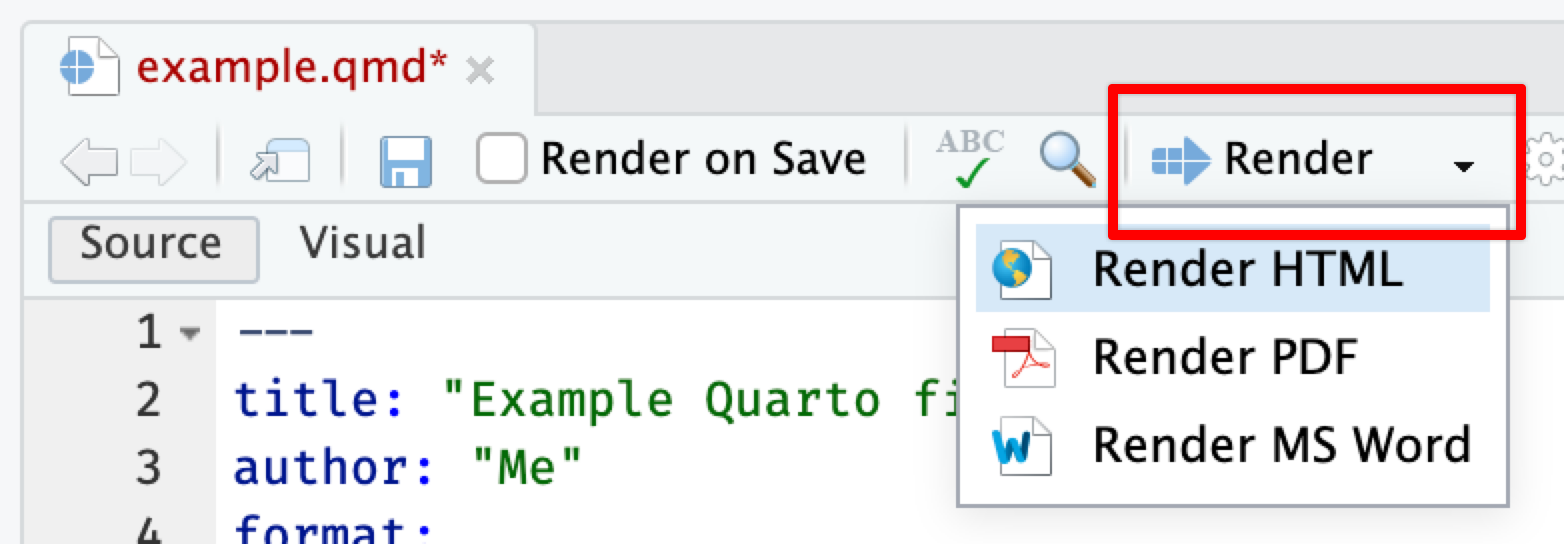
When you’re all done, click on the “Render” button at the top of the editing window and create a Typst (pdf), PDF, or Word version of your document. Upload that file to iCollege. Do not upload a rendered HTML file (they don’t work on iCollege).
Tips
TipFile organization
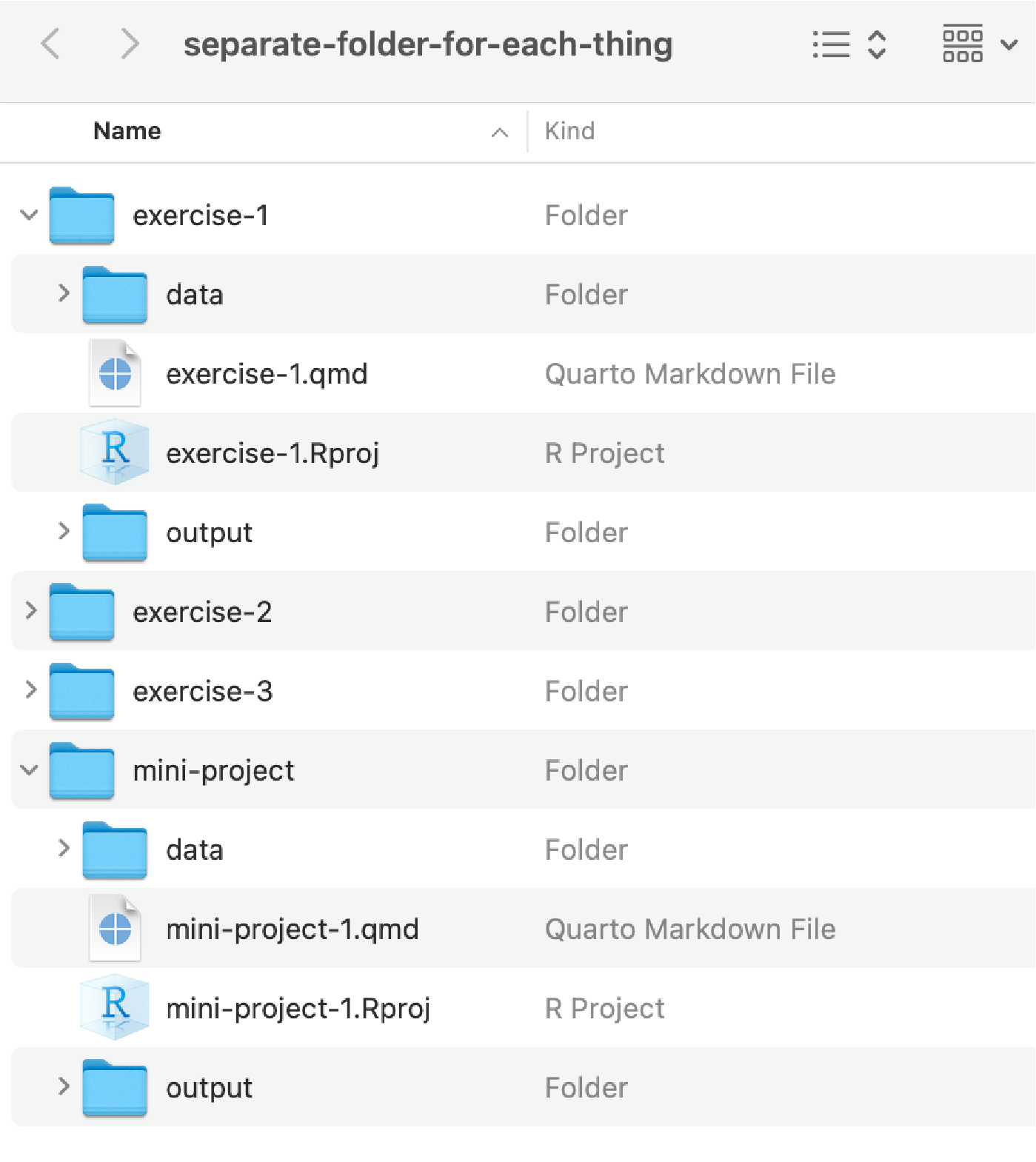
You’ll be doing this same process for all your future exercises. Each exercise will involve a Quarto file.
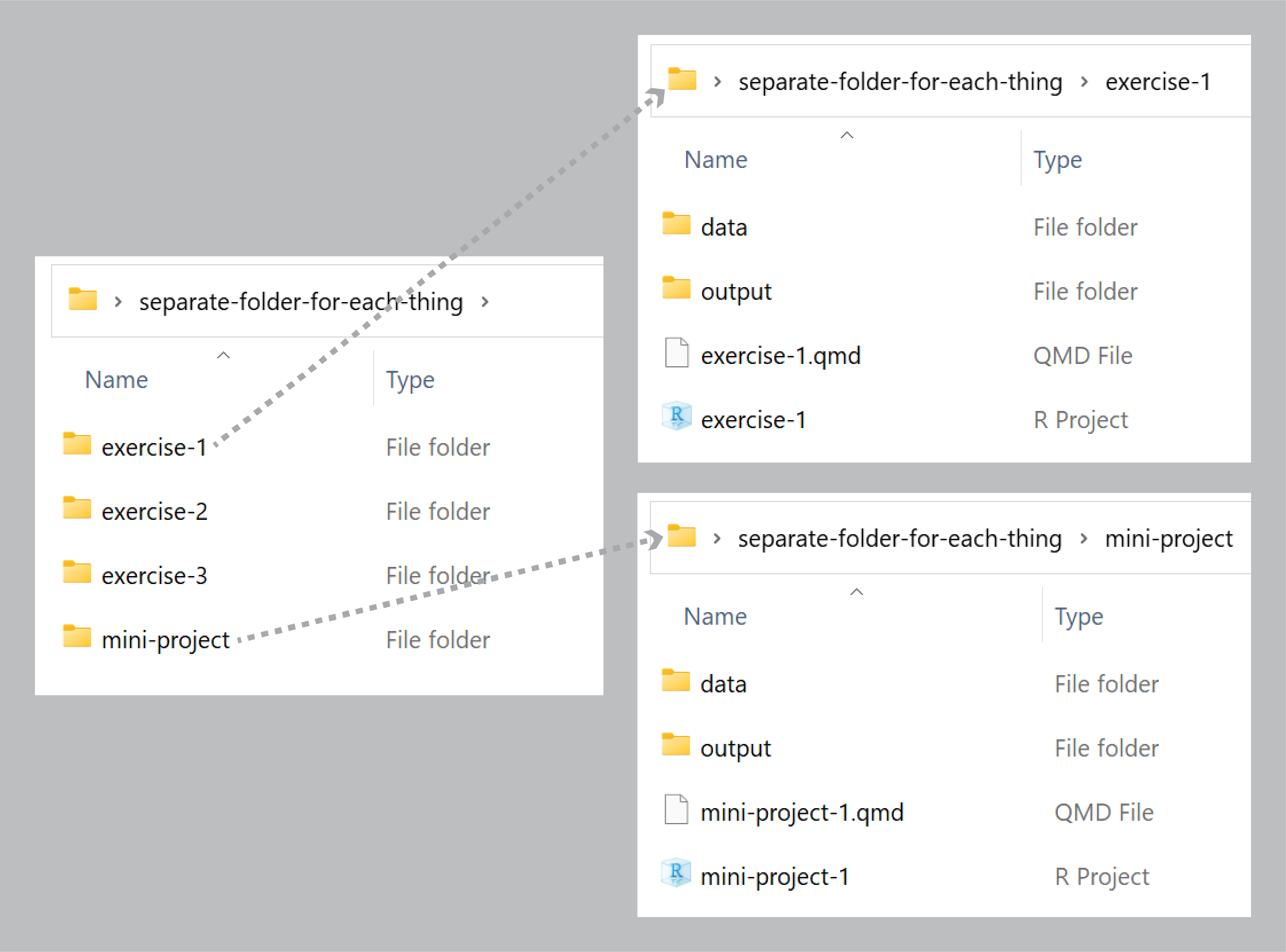
You can either create individual projects for each assignment and mini-project (recommended!):
Or you can create a new RStudio Project directory for all your work (not recommended!):
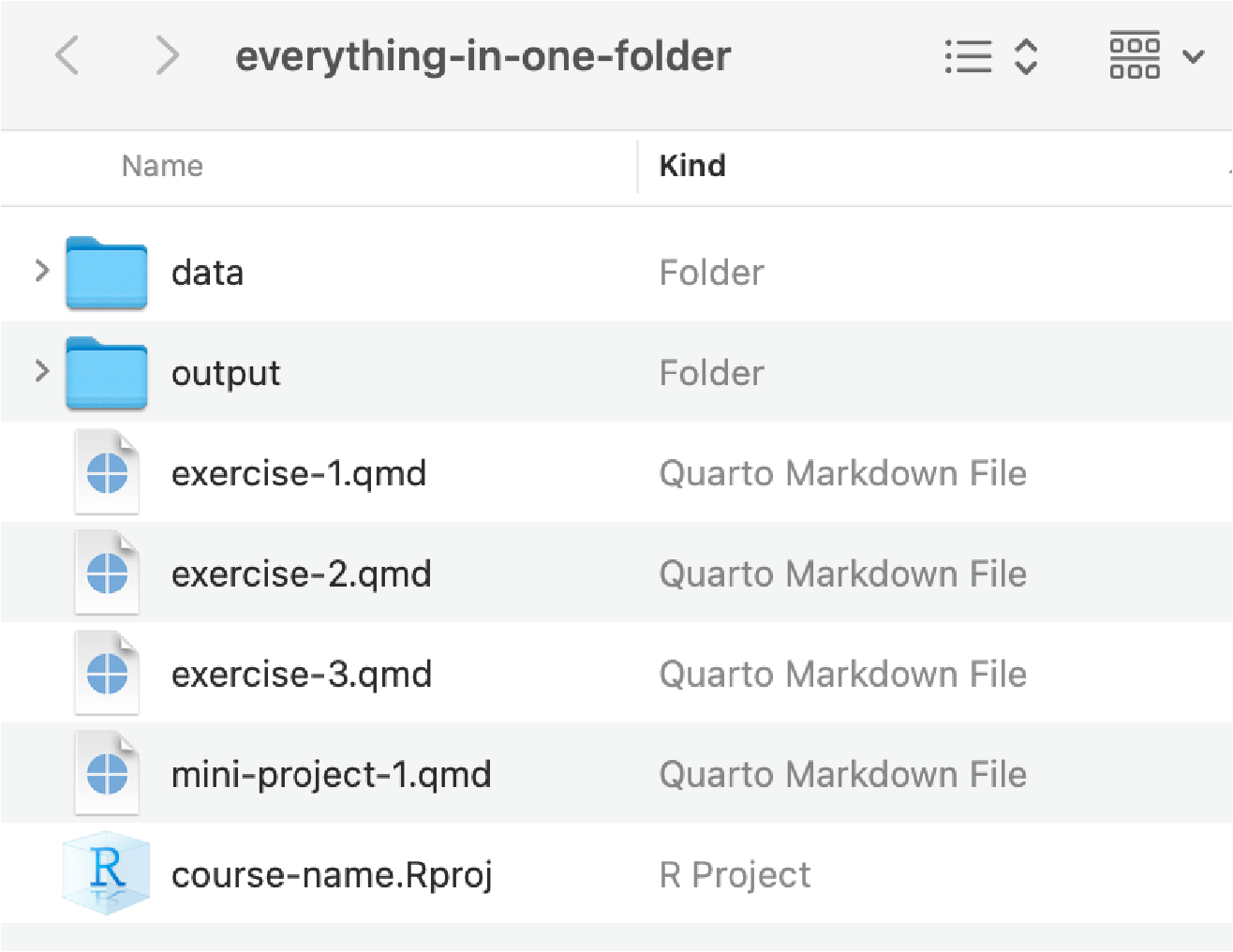
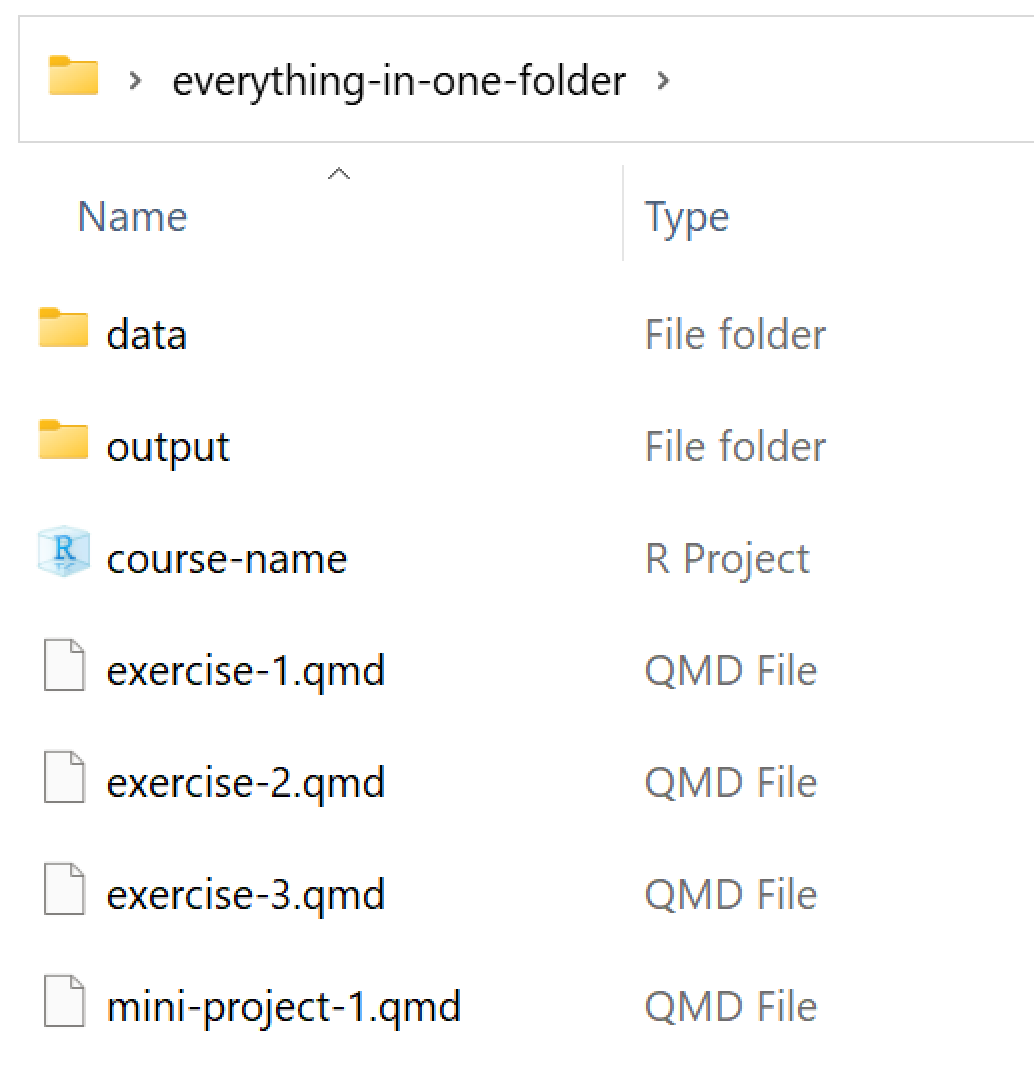
TipRunning chunks
Remember that you can run an entire chunk by clicking on the green play arrow in the top right corner of the chunk. You can also run lines of code line-by-line if you place your cursor on some R code and press ⌘ + enter (for macOS users) or ctrl + enter (for Windows users).
Make sure you run each chunk sequentially. If you run a chunk in the middle of the document without running previous ones, it might not work, since previous chunks might do things that later chunks depend on.
TipInserting chunks
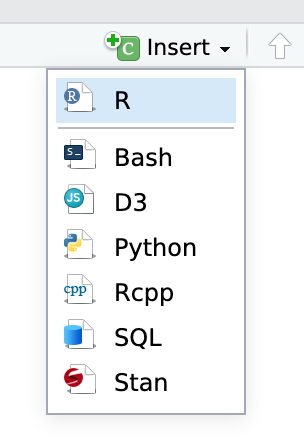
You’ll need to insert some of your own code chunks. Rather than typing them by hand (that’s tedious!), use the “Insert” button at the top of the editing window, or press ⌥ + ⌘ + I on macOS, or ctrl + alt + I on Windows.